
How to Extract Bulk Emails for Free Using Google Search Operators
Extracting emails in bulk can feel impossible when you don’t want to pay for a tool. The good news is that Google can do much of the heavy lifting if you know how to ask it the right way.
In this tutorial, you’ll learn two free methods: a manual search-operator method and an easier one using Google Advanced Search. You’ll also learn how to collect the results, pull out the emails, and clean the list.
Prefer watching? Here’s the full video walkthrough:
Use this responsibly: Only collect and contact people for legitimate, relevant purposes, preferably business-to-business. Follow the email and privacy laws that apply to you and your recipients (such as CAN-SPAM or GDPR), always include an opt-out, and respect each platform’s terms. We cover this in more detail near the end.
What You’ll Need
Everything in this tutorial is free:
- Google Search with its search operators
- Google Advanced Search, a form that builds the search for you
- Notepad (or any plain text editor) to collect results
- Lite14, a free online email extractor, to pull emails out of raw text
How the Method Works
When you search on Google, each result shows a small preview called a snippet. Many snippets include an email address that someone published publicly, such as in a profile bio or a contact line.

Every result has a title, a URL and a snippet. The operators below target each of these parts.
Search operators let you tell Google exactly where to look and what to look for, so more of your results contain emails. Here are the ones you’ll use:
| Operator | What it does | Example |
|---|---|---|
site: | Limits results to one website | site:facebook.com |
intitle: | Requires a word in the page title | intitle:designer |
inurl: | Requires a word in the page URL | inurl:contact |
intext: | Requires a word in the page text or description | intext:Dallas |
" " (quotes) | Forces Google to match the exact phrase | "gmail.com" |
Pro Tip: Quotation marks are the strongest signal you can give Google. Whatever you put inside quotes gets priority, so put your most important keyword in quotes.
Method 1: Build the Search Term Manually
Open Notepad and build your search term piece by piece. That way you can tweak it before you paste it into Google.
Step 1: Choose the platform
Pick the website you want to search. It could be Facebook, LinkedIn, X, or Instagram.
site:facebook.comStep 2: Add the email provider
Next, add the email provider you want to find, such as gmail.com, yahoo.com, aol.com, or outlook.com.
Step 3: Add a location and a job title or business type
Add the city or state you’re targeting, and the job title or type of business. Here’s an example that searches for teachers in Dallas:
site:facebook.com intext:"gmail.com" "Dallas" "teacher"When you paste this into Google, you’ll probably see very few emails. That’s because Google gives priority to the words in quotes (Dallas and teacher) over the intext: part.
Step 4: Move the email provider into quotes
Flip the priorities. Put the email provider in quotes so Google focuses on it, and let the location and job title be regular keywords:
site:facebook.com "gmail.com" intext:Dallas intext:teacherNow emails start appearing in the snippets.
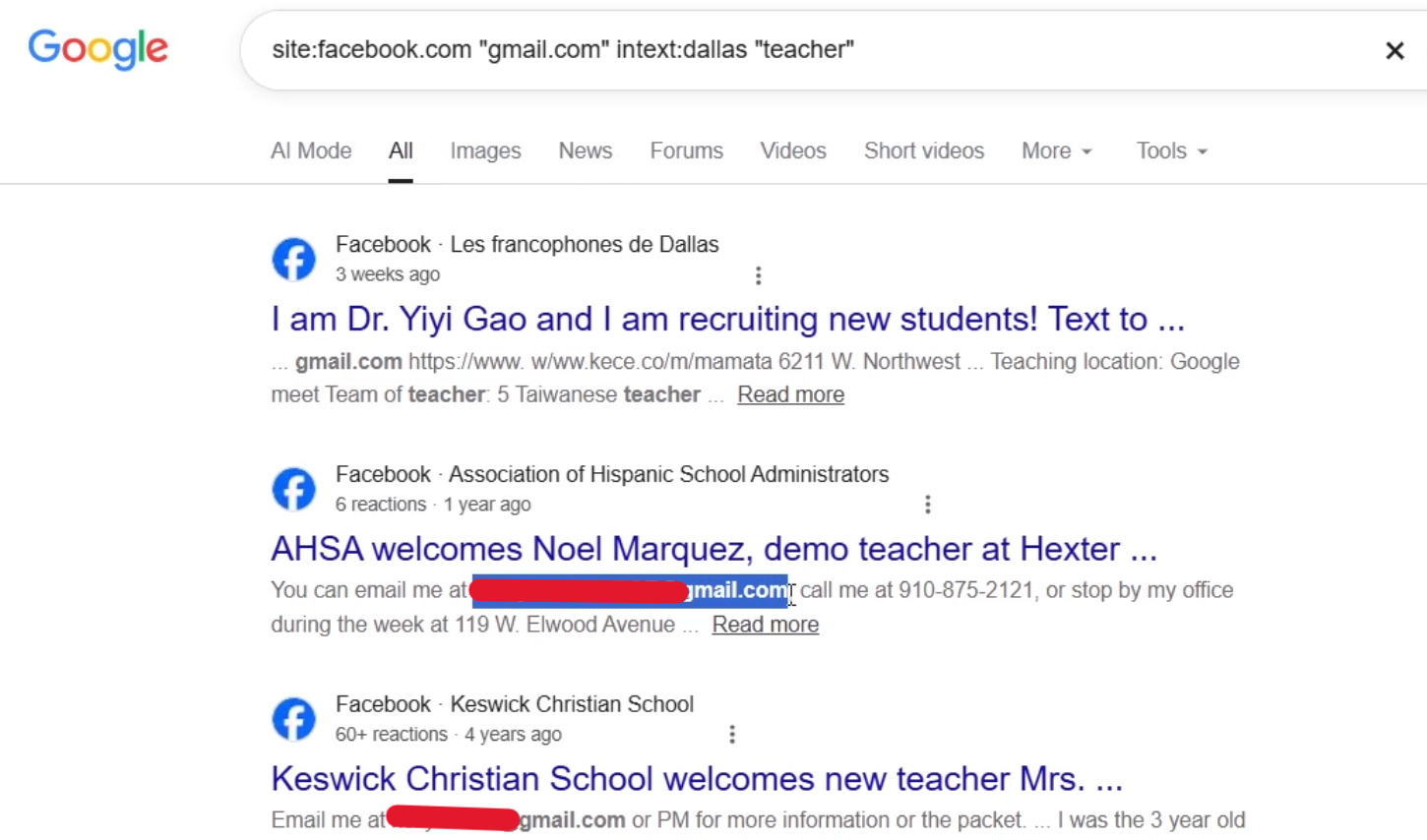
After moving “gmail.com” into quotes, emails start showing up in the snippets (blurred here for privacy).
Step 5: Loosen it up and compare
Try removing the quotes around the job title or location so Google focuses even more on the email provider:
site:facebook.com "gmail.com" Dallas teacherIn the demo, this version returned noticeably more emails than the earlier ones. You can also swap the site: value (for example to linkedin.com) and compare the results.
Pro Tip: Treat search terms like experiments. Change one thing at a time (the platform, the location, the quotes) and keep the version that returns the most emails.
Why some emails look incomplete
You’ll sometimes see an email cut off in a snippet. Google shortens previews, so some results won’t give you a full address. That’s normal, so skip those and keep the complete ones.
Method 2: Use Google Advanced Search
The simplest way to get a working search term is to let Google build it for you.
- Open Google’s Advanced Search page. You can also reach it from the Tools menu in your search results.
- In all these words, type your location and job title or business type, for example:
Florida designer - In this exact word or phrase, type your email provider, for example:
@gmail.com - In site or domain, enter the platform, such as
facebook.comorx.com. - Leave everything else on the default settings and click Advanced Search.
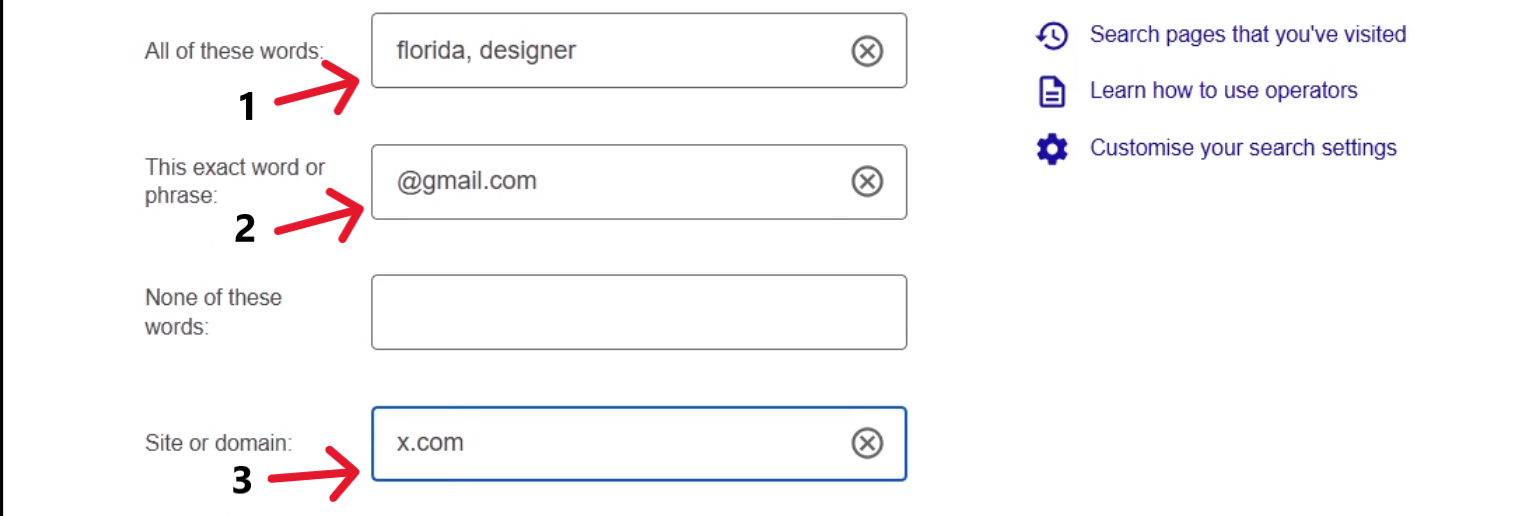
Fill in the three fields, then click Advanced Search.
Google returns results and shows you the search term it created in the search box. In the demo, this method produced a lot of emails with very little effort.
Pro Tip: Copy the search term Google generates and save it in Notepad. Use it as a template, then adjust it by hand for different cities, platforms, and job titles.
Find Business (Domain) Emails
What if you want company emails like support@company.com instead of Gmail addresses? Websites usually show clickable emails using a code called mailto:.
Replace the email provider in your search term with mailto::
site:linkedin.com "mailto:" Dallas teacherThe results in the demo included company email addresses from a variety of businesses. You can try your search with and without the site: filter to see which gives you better results.
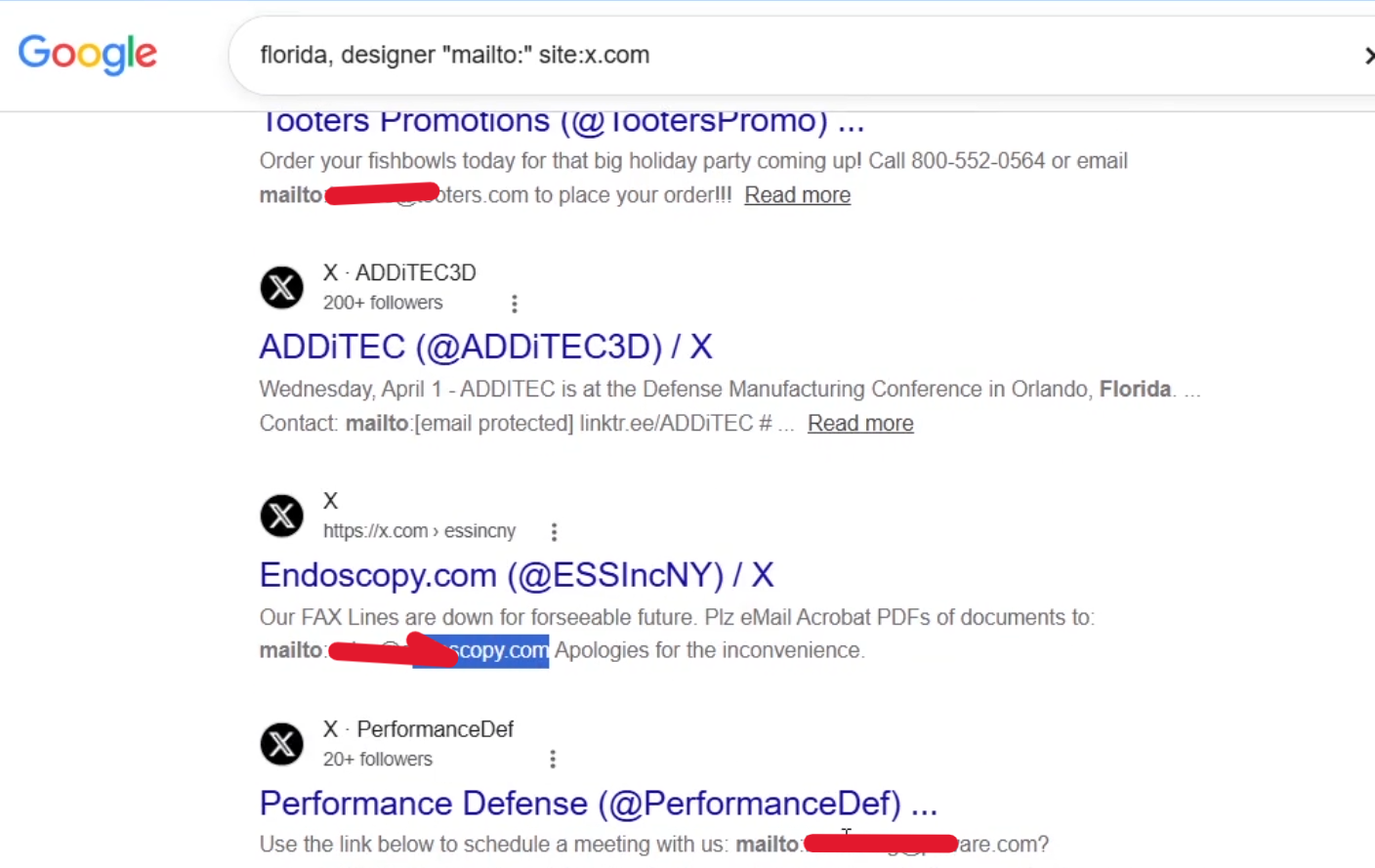
Searching for “mailto:” surfaces company emails published on websites (blurred here for privacy).
Collect the Results
Google no longer lets you show 100 results on one page. You now get 10 per page, so you have to collect the pages one at a time. It takes a little patience, but the process is simple:
- Open your search results.
- Press Ctrl + A to select everything, then Ctrl + C to copy.
- Open a fresh Notepad file and press Ctrl + V to paste. Press Enter to start a new line.
- Go back to Google, scroll down, and click Next.
- Repeat steps 2 to 4 for as many pages as you can.
Heads up: If you do many searches in a row, Google may ask you to confirm you’re human with a CAPTCHA. Slow down, take a break, and continue later.
Extract the Emails
Now you have a large block of raw text. Let a free extractor pull out only the emails.
- Press Ctrl + A and Ctrl + C in your Notepad file to copy all the raw data.
- Open Lite14 and find its email extractor.
- Paste your raw data into the input box.
- Set the separator to new line, so each email lands on its own line.
- Click Extract.
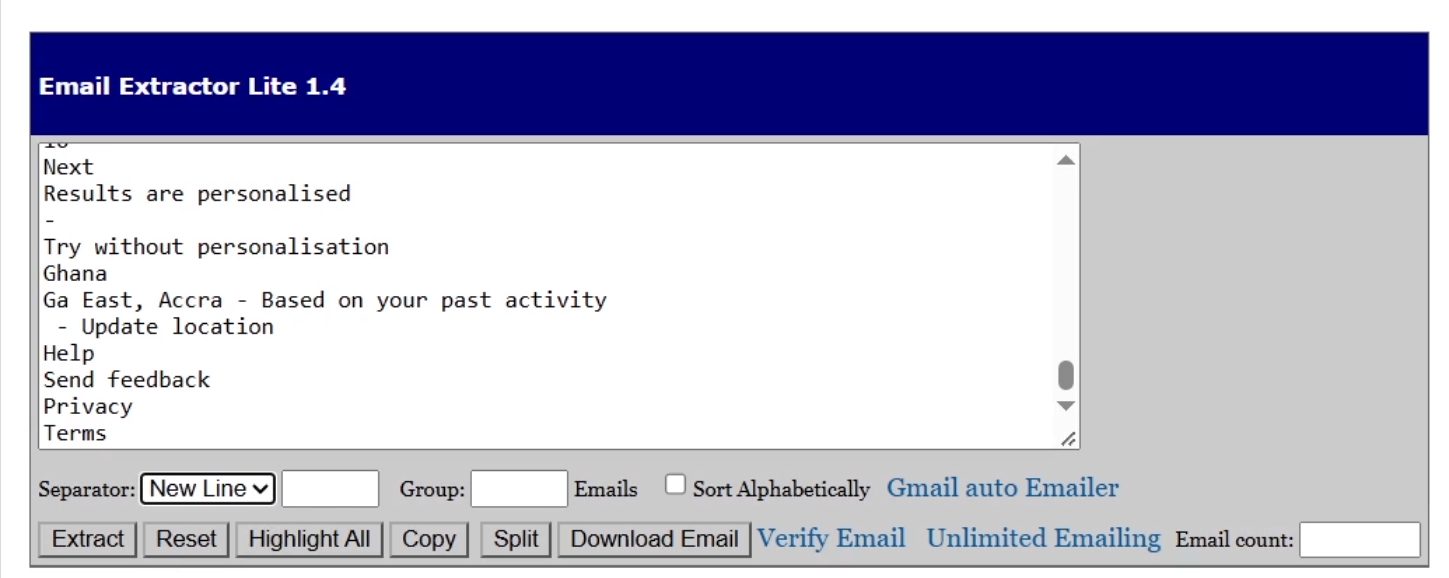
Paste the raw data, choose “new line” as the separator, and click Extract.
In the demo, this produced a list of 34 emails from the collected pages.
Clean Your Email List
Look closely at your extracted list and you’ll spot errors. Some emails end with a stray full stop, and some end with .read because the “Read more” text in the snippet got attached to the email.
Learn the pattern of the mistakes, then fix them in bulk with find and replace in Notepad.
Remove the “.read” ending
- Copy your extracted emails into a fresh Notepad file.
- Click Edit, then Replace.
- In Find what, type
.read. - Leave Replace with empty and click Replace All.
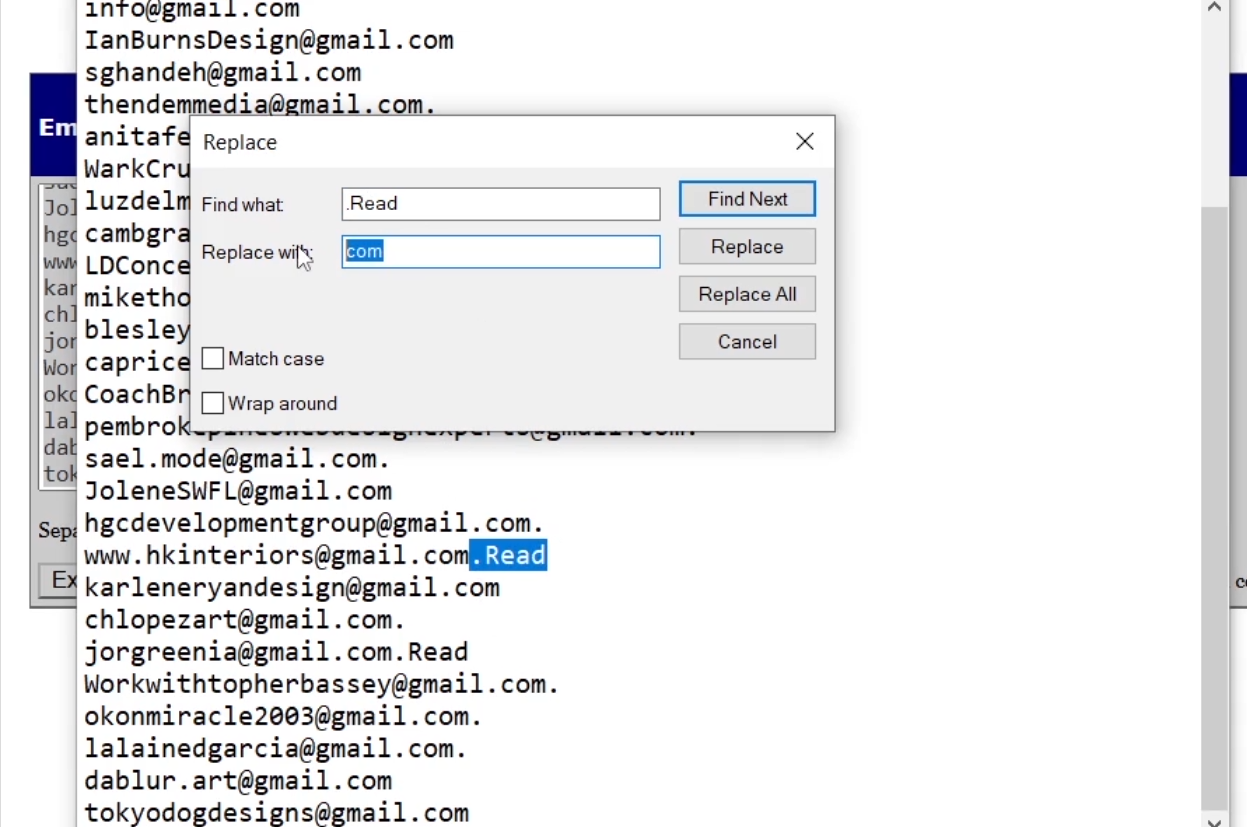
Find “.read”, leave “Replace with” empty, then click Replace All.
Remove the extra full stop after “.com”
- In Find what, type
com. - In Replace with, type
com - Click Replace All.
Warning: This second fix can damage valid addresses that end in
.com.ng,.com.gh,.com.au, and other country endings, because it removes the dot after “com”. Scan your list for those first, or use the safer regex method below.
A safer option: regex in Notepad++
If you use Notepad++ (a free editor), open Find and Replace, choose Regular expression, search for \.$ and replace it with nothing. This removes only a full stop at the very end of a line, so it leaves .com.ng addresses intact.
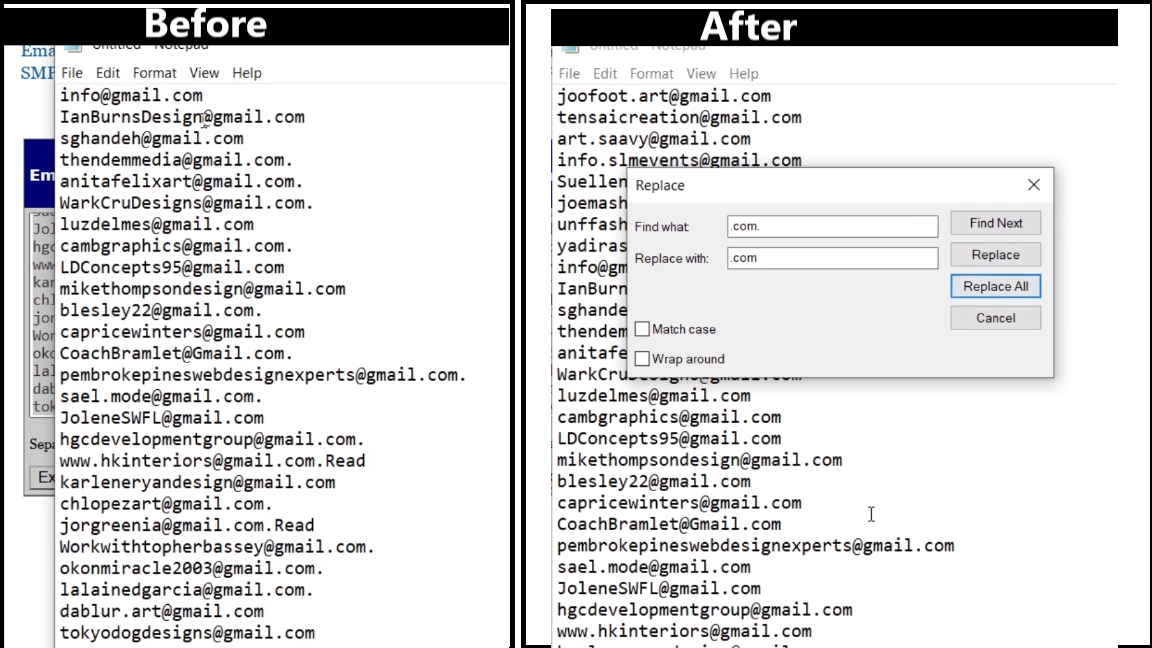
Before (left) and after (right): the stray dots and “.read” endings are gone.
Verify Before You Send
Raw extracted emails always include some that are fake, mistyped, or inactive. Sending to them hurts your sender reputation and sends your emails to spam.
Before you send anything, run your list through a verifier. MailVerix is built for exactly this: high-speed email verification and list cleaning using MX and DNS record checks and selective SMTP handshaking.
When to Move Beyond the Manual Method
The manual method is great for learning how search operators work and for small lists. It does get slow when you need a lot of leads, because you build every search term by hand and copy page after page.
When you’re ready to speed things up, these tools automate the process:
- MailGrab AI is a Chrome tool for AI-powered B2B lead extraction and verification, with an AI search query builder.
- BulkGrab is a B2B lead harvester and search pattern engine with smart query expansion.
Use Your Email Lists Responsibly
Having an email address doesn’t mean you have permission to message the person. Follow these rules:
- Focus on business contacts. Business emails with a clear, relevant reason to contact them are the safest choice.
- Be relevant and honest. Say who you are, why you’re writing, and don’t use misleading subject lines.
- Include an easy way to opt out and honor every request quickly.
- Know your local laws. Rules such as CAN-SPAM, GDPR, and local data protection laws differ by country.
- Respect platform terms. Check the rules of any site you search before you collect data from it.
- Never buy or reuse lists blindly. Build your own and keep it clean.
What’s Next
Once you have a clean, verified list, the next step is sending your emails in a way that reaches the inbox. If you want to learn how to build your own SMTP server for sending email at scale, check out the Create Your Own SMTP Server course.
Conclusion
You now have a free workflow for finding emails with Google search operators: build a smart search term (by hand or with Advanced Search), collect the result pages, extract the emails, clean the list, and verify it before sending. The key is to experiment with your search terms, keep your list clean, and always contact people responsibly.
Stop just watching and start building. If you want to speed up this process and automate your workflows, check out the premium tools at Smartivate Tech.


Comments